Keeping an SSD in good shape isn’t just about performance; it’s about preventing the kind of silent failure that turns into major data loss. Unlike traditional hard drives, SSDs don’t give many audible warnings. When they go, they go fast. That’s where a tool like DiskCheckup comes in. It doesn’t try to be a flashy all-in-one suite. Instead, it quietly delivers exactly what matters: real-time, detailed insight into your drive’s health. Not all tools manage that without getting bloated or too obscure for average users. DiskCheckup finds a middle ground. Below are 5 features that set it apart.
5 Features That Make DiskCheckup the Best Tool to Check Your SSD's Health
Transparent Access to SMART Attributes
DiskCheckup gives direct access to SMART (Self-Monitoring, Analysis, and Reporting Technology) data without watering it down. This isn’t just a surface-level “good” or “bad” verdict. It exposes raw values like Reallocated Sector Count, Wear Leveling Count, and Power-On Hours. For SSDs, seeing the actual number of Program/Erase cycles matters more than a vague color-coded rating.
It helps in scenarios where a drive still shows “OK” in basic monitoring software but is actually close to hitting write limits. A user running disk-intensive tasks—say, video editing or database work—can spot the trend early. You can keep an eye on the Total Host Writes over time, compare it with the manufacturer’s endurance specs, and decide whether to swap the drive out before it slows down or locks itself to read-only.
Some tools round these figures off or bury them behind summaries. DiskCheckup shows them all, in a static layout that doesn't constantly reshuffle when new data appears.
Simple Threshold Monitoring and Alerts
Instead of forcing users to stare at attribute logs daily, DiskCheckup lets you set thresholds for key SMART attributes. Once a value crosses that line, it triggers a local notification or sends an email alert. This is particularly helpful in environments where multiple machines are used but not regularly checked. It could be a small business server running off a consumer-grade SSD, or just a home NAS tucked away in a corner.
Setting the alert doesn’t take scripting knowledge. It’s a point-and-click setup from the config panel. The email function works through standard SMTP settings—no proprietary services or cloud relays involved. Some SSD tools tie this behind a subscription or advanced license. Here, it’s free and functional out of the box.
There’s one thing to be aware of: threshold monitoring depends on SMART support from the drive’s firmware. A few entry-level SSDs report limited attributes, which can reduce alert effectiveness. But if the drive supports it, DiskCheckup will pick it up automatically.
Lifetime and Usage Estimation Without Guesswork
DiskCheckup offers a feature called “Estimated Life Remaining,” but unlike many tools, it doesn’t treat it as gospel. Instead, it calculates based on actual usage metrics like Total NAND Writes and Erase Count—if the drive supports them—rather than relying on a generic timer or date stamp.
This is helpful in mixed-drive environments. Say you’ve got one drive that’s been in use for five years with light workloads and another that’s only 18 months old but under constant writes. DiskCheckup helps differentiate between them with a more data-driven estimate. You don’t get surprised when the newer drive starts showing wear faster than the old one.
There is a caveat: some SSDs, especially those with custom controllers, may not expose all the values needed for the most accurate projection. In those cases, the tool clearly flags the missing data rather than faking a percentage based on limited input. That kind of transparency makes a difference when trying to make upgrade decisions.
Portable Build That Doesn’t Bog Down the System
Many SSD monitoring tools install background services or autostart apps that run every time the system boots. DiskCheckup can run as a standard install, but there’s also a portable version. You can keep it on a USB stick or a network share and run it as needed.
That’s useful for tech support roles, where you're checking drives across multiple systems, or in workplaces where you can’t install software due to admin restrictions. It starts up quickly, reads the data without requiring a restart, and closes cleanly without leaving junk in the registry or startup folders.
It doesn’t try to claim system resources by default either. No active tray icons, no live dashboards, no auto-scans unless you ask for them. That minimalism makes it less likely to conflict with backup tools, RAID utilities, or proprietary SSD software from drive vendors.
Compatible with Both Older and Modern Interfaces
DiskCheckup works with drives connected through standard SATA interfaces and also supports newer NVMe drives, as long as they expose SMART data in a way the OS can read. That gives it more flexibility than tools locked to either old-school HDDs or only modern PCIe SSDs.
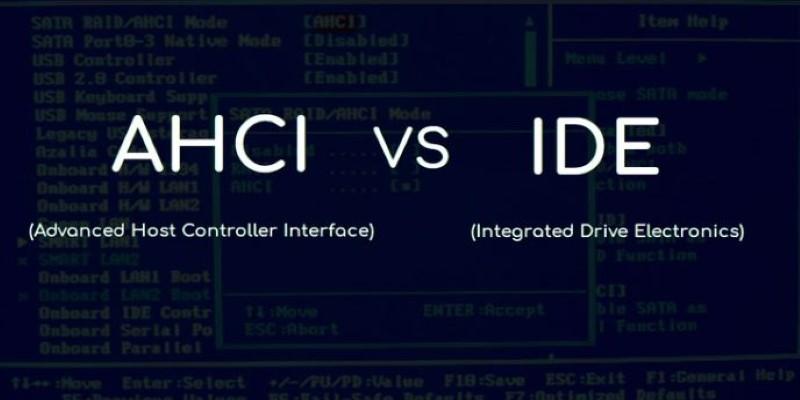
It works well in machines running a mix of drive types. For instance, some setups boot from a smaller NVMe SSD and store bulk data on a larger SATA SSD. DiskCheckup reads both without needing different apps or drivers. It also integrates neatly with Windows, using the standard SMART interface available through most IDE and AHCI controllers. No kernel-level access or driver hacks needed.
However, it's worth noting that NVMe support can vary depending on the system’s BIOS and chipset. On older motherboards or those with RAID modes enabled, SMART passthrough for NVMe might not function. In those cases, DiskCheckup won’t fabricate data—it simply won’t show unsupported drives, which is better than guessing or crashing.
Final Thoughts
DiskCheckup keeps things simple and focused. It isn’t bloated with system-wide monitoring features or subscription gimmicks. Instead, it zeroes in on SSD health with clear, reliable data. There’s no clutter—just the metrics that matter. Whether you’re tracking an older drive’s wear or checking how a new SSD is performing under daily loads, it gives you the insight you need without noise. It won’t handle firmware updates or controller tweaks, but that’s not its role. As a quiet, dependable tool for spotting early signs of drive fatigue, it does the job well. That straightforward approach is what makes it dependable.