We have all been there. You are sitting in a coffee shop, deep in the flow of writing a report, when the music stops buffering and the little Wi-Fi icon on your toolbar turns into a hollow wedge. The internet is down. We have become so conditioned to the "always-on" nature of modern software that we assume a severed connection means a severed workflow. The dreaded "Trying to connect..." banner in Google Workspace feels like a stop sign. It requires proactive setup, though. You cannot flip the switch after the internet goes out; you have to prepare the bunker before the power cuts.
Configuring The Browser And Drive Settings
The foundation of working offline begins with the browser environment. Unlike desktop applications like Word or Excel, which live natively on your OS, Google's tools live in the cache of your web browser. This means you need to explicitly grant Chrome permission to store files locally. If you try to open a Drive file without internet and haven't done this, you will simply meet the dinosaur game.
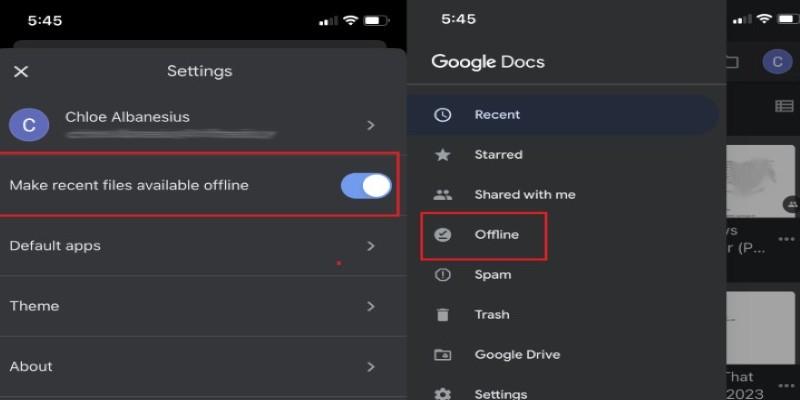
First, you need the "Google Docs Offline" extension. Once that is active, the control center is actually in Google Drive, not the individual apps. You navigate to your Drive settings by clicking the gear icon in the top right corner. There is a specific checkbox labeled "Offline" that allows the creation and editing of recent files.
Checking this box triggers a background process. Drive begins analyzing your "Recent" file list and quietly downloading the data to a hidden folder on your computer. It is not instantaneous. If you check the box and immediately hop on a plane, you will be disappointed. You need to leave the tab open for a while as it syncs. You can verify it is working by looking for a small "Ready for offline" checkmark icon that appears near the settings gear or in the status bar of the document list. This visual confirmation is the only way to know that the bridge between the cloud and your local drive is built.
Managing File Availability Manually
Relying on the "Recent" files algorithm is risky business. The system guesses what you might need based on what you opened last week, but algorithms are terrible at predicting human intent. It might cache a recipe you looked at three days ago, but ignore the quarterly financial spreadsheet you need for a meeting in an hour. To guarantee access, you must manually pin specific files.
You do this by right-clicking a file or a selection of files in Drive and toggling the "Available offline" switch. This forces the system to keep a local copy regardless of when you last opened it. This is critical for users who work on long-term projects with scattered access patterns.
There is a storage consideration here. Chrome’s cache is not infinite. If you try to make three gigabytes of video-heavy presentations available offline, the browser might balk or purge older files to make room. It is best practice to uncheck the offline availability for projects once they are completed. This keeps the cache fresh and ensures the files you actually need aren't being crowded out by ghost data from last year’s projects.
Navigating The Offline Editing Experience
Once you are disconnected, the interface changes slightly. When you open a cached document, you will see a lightning bolt icon next to the file name. This is your indicator that changes are being saved to the hard drive, not the server.

For Sheets users, the limitations are more technical. Functions that pull data from the open web, like GOOGLEFINANCE or IMPORTXML, will break instantly. They will display errors or just freeze on the last known value. A financial analyst working on a flight needs to "paste as values" any live data before shutting the lid; otherwise, they will open the sheet to a sea of #N/A errors. It is also worth noting that you cannot create a copy of a document while offline.
Synchronizing And Resolving Conflicts
The magic—and the danger—happens when you reconnect. As soon as your device detects a pulse of internet, the "Google Docs Offline" extension wakes up and begins pushing your local changes to the cloud. Usually, this is seamless. You see a "Syncing..." message, and then "Saved to Drive."
However, version conflicts are a real headache in collaborative environments. If you were editing paragraph three on a flight, and your colleague was editing paragraph three from their office while you were in the air, the system has to make a choice. Google generally tries to merge the two, but it often results in a messy block of text or a "Suggesting" mode overlay that requires manual triage.
To mitigate this, sophisticated teams use a "checkout" system. If you know you are going offline to work on a shared slide deck, you leave a comment on the first slide or send a Slack message saying, "I am taking this offline for two hours." It prevents the dreaded "Last edit was made offline" overwrite scenario.
You also need to be patient during the re-sync. Closing the browser tab the second you get Wi-Fi back is a recipe for data loss. Watch the cloud icon next to the document title. Until it turns into a checkmark, your data exists only on your fragile local hardware. Give the browser a minute to handshake with the server, especially if you have pasted large images or done heavy formatting while disconnected.
Conclusion
The ability to work without Wi-Fi does more than just save you during an internet outage. It changes the psychology of using web-based tools. It removes the anxiety of instability. When you know your Docs and Sheets are pinned safely to your SSD, a spotty hotel connection or a storm knocking out the cable lines becomes a minor inconvenience rather than a productivity disaster. It requires a few minutes of foresight to configure, but that investment pays for itself the first time the lights go out and you can keep typing without missing a beat.