You've finally unboxed the Boox Palma, perhaps drawn to the promise of an E-Ink device that fits neatly in a pocket and handles more than just reading. It's an intriguing piece of hardware, a niche Android device that gives you access to all your favorite apps, Kindle, Libby, Feedly, without the eye strain of a standard screen. It feels fast, but like any versatile E-Ink reader running a full Android layer, the out-of-the-box settings are a broad compromise.
They are meant to be acceptable to everyone, which means they are perfectly tuned for no one. The Palma's real potential unlocks after you spend an hour in the Settings menu, customizing the speed and clarity to match your actual use case. Getting the most out of this compact device means drilling down into five specific areas, adjusting the global system behavior, and the individual app controls.
Beyond the Defaults: Five Must-Change Settings on Your New Boox Palma
The Global Refresh Mode
The most crucial setting you’ll ever touch is the screen refresh profile. This controls the trade-off between image quality and responsiveness, a central conflict in the E-Ink world. The default mode, HD, prioritizes a clean, sharp display, minimizing ghosting—the faint residue of previous images—but at the cost of noticeable lag when scrolling or performing animations. This is fine for reading static documents, but navigating complex UIs becomes frustrating.
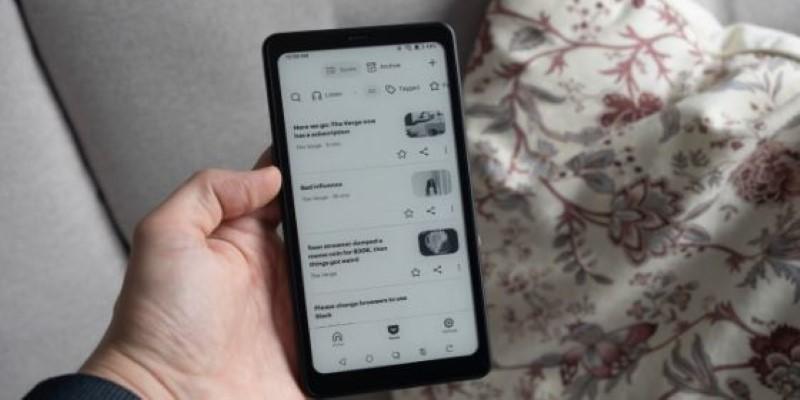
The first change should be flipping the global setting to Balanced or, often better for the Palma, Speed. You can find this under Settings > Display and Performance > Global E-ink Center. Balanced offers a good middle ground: you’ll see slightly more ghosting, but general system navigation feels significantly faster.
Moving to Speed mode is ideal if your main activities are rapid scrolling in a long article, such as triaging dozens of articles in the Pocket app. This allows you to zip through the list without the screen feeling sluggish. The limitation here is visual artifacting; highly detailed images will look grainy and may retain after-images until you manually refresh the screen.
App Optimization and System-Wide Floating Ball
The Palma's strength is its access to Android, but apps aren't designed for E-Ink. They rely on animations and color that confuse the display. Boox added a per-app optimization menu, but constantly diving into settings for every new app is inefficient. The simpler solution is activating the Floating Ball.
This is a customizable, always-on overlay icon that grants immediate access to the App Optimization menu and other system shortcuts. Enable it under Settings > Accessibility > Floating Ball. Once active, launch an app, like Spotify, and tap the ball. You can instantly change that specific app's refresh mode or, crucially, enable the Whitening Filter.
This filter desaturates colors, effectively mitigating the ghosting caused by complex, high-contrast UI elements like album art. You can save those settings specifically for that app. The constraint is that deep optimization can sometimes cause minor layout issues in third-party apps.
The Power of "A2" and Gesture Customization
While you’ve set the global refresh mode, the true rapid-fire refresh is the A2 mode, a legacy E-Ink setting that dramatically increases speed by sacrificing almost all image quality. This is perfect for brief, high-speed interactions, like using the keyboard. Rather than selecting it from a menu, map it to a physical gesture.
Go to Settings > Buttons and Gestures > Navigation Ball Settings. The most productive move is to assign a quick action, typically the Double-Tap of the physical power button or the Floating Ball, to the A2 Mode Switch. If you're reading a PDF (HD Mode) and need to quickly use the search bar, a double-tap instantly switches to A2.
The keyboard pops up lag-free, and as soon as you dismiss it, another double-tap snaps you back to the high-definition reading mode. A2 mode renders everything pale and is only suitable for text input or very rapid navigation.
Customizing the System Quick Settings Panel
The Quick Settings panel, the pull-down shade from the top of the screen, defaults to basic Android toggles. Having key E-Ink functions a single swipe away is a massive time saver.
Navigate to Settings > Buttons and Gestures > Quick Settings Panel. Reorganize this panel to prioritize E-Ink-specific tools. Move Wi-Fi and Bluetooth down, and bring the Global Refresh Mode Selector (allowing instant switching between HD and Balanced), the Screen Calibration tool, and the Screenshot shortcut up top.
A quick swipe down allows you to easily hit the quick-settings Refresh button, which performs an aggressive refresh that clears ghosting better than a simple page turn—the panic button for a visual mess.
Managing Your Sleep and Power Settings
The Palma, being a full Android device, can suffer from background processes draining the battery. The default sleep behavior is too generous, waiting several minutes before truly locking down. This matters when you’re relying on the Palma for weeks of reading without a charge.
Head into Settings > Battery > Power Settings. Adjust the Auto Sleep Time to the lowest comfortable setting, perhaps one minute, instead of the default five. Furthermore, utilize the Background App Freeze feature. This lets you manually select apps that should be completely suspended when the screen is off.
You don't want your RSS reader constantly pulling data and taxing the CPU while the device is asleep. For instance, you might freeze the Dropbox app, ensuring it only syncs files when the screen is active. Ruthless battery management is the only way to preserve the E-Ink advantage.
Conclusion
The Palma offers flexibility far beyond a single-purpose E-reader, but this freedom requires hands-on customization. The five key changes refining the global refresh, utilizing the floating ball for per-app control, mapping A2 to a fast gesture, tweaking the quick access panel, and tightening power management fundamentally transform your interaction with the device. The goal is not just function, but seamless integration. Once implemented, these adjustments allow the device to disappear, letting you focus entirely on your content. The Palma stops feeling like an E-Ink device running Android and starts feeling like your perfect compact digital tool.